Are you yearning to start your online store but something is stopping you? In 2026, starting an online store is no longer a technical hurdle, it’s a strategic opportunity. With global e-commerce sales projected to hit $7.89 trillion by 2028, this guide on how to start an online store will help you build a professional storefront and sell effectively in under an hour.
You do not require a professional developer to build a high-converting site. By following this roadmap, you can join the 3 billion annual online shoppers with a store that is built to scale.
Essential Tools for Your Online Store
The e-commerce landscape is competitive. To stand out, your store needs to be faster and more user-friendly than the average site, which currently sees a 70.22% cart abandonment rate.
-
Domain and Hosting: Your domain is your digital address. For superior performance, we recommend fastest WordPress hosting to ensure your site loads in under 3 seconds.
-
WordPress & Astra Theme: Building an ecommerce website with WordPress is the most scalable choice. We recommend the Astra Theme because it is lightweight (under 50KB) and optimized for 100/100 PageSpeed scores.
-
WooCommerce: This powers nearly 99% of WordPress stores. It manages everything from inventory to form conversion tracking.
Part 1: Installing WordPress
WordPress is famous for its “5-Minute Install”.
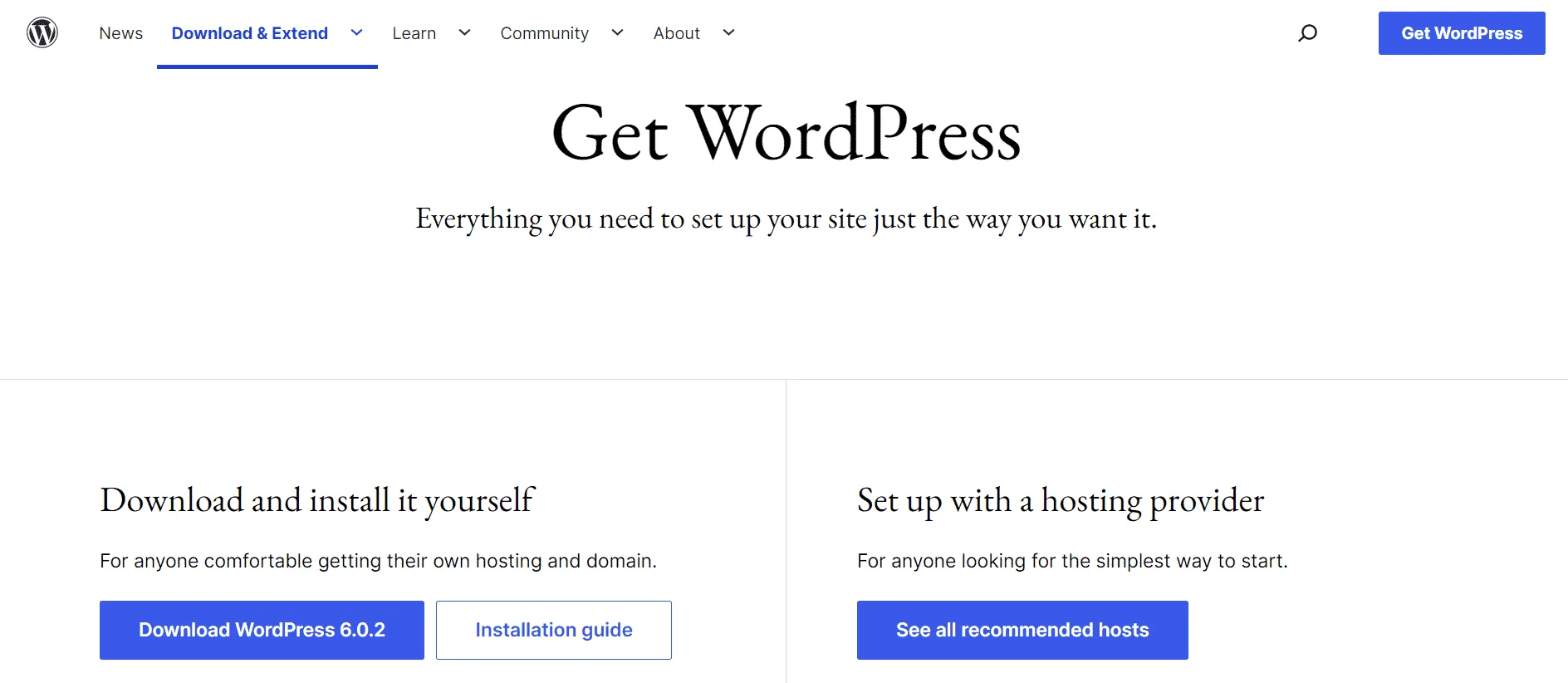
1. Download: Get the latest version from WordPress.org and unzip it.
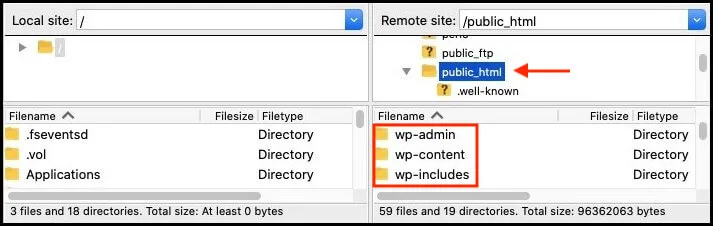
2. Upload: Use an FTP client or your hosting’s File Manager to move files to your root directory (usually public_html).
3. Database: Create a MySQL database and user in your hosting cPanel.
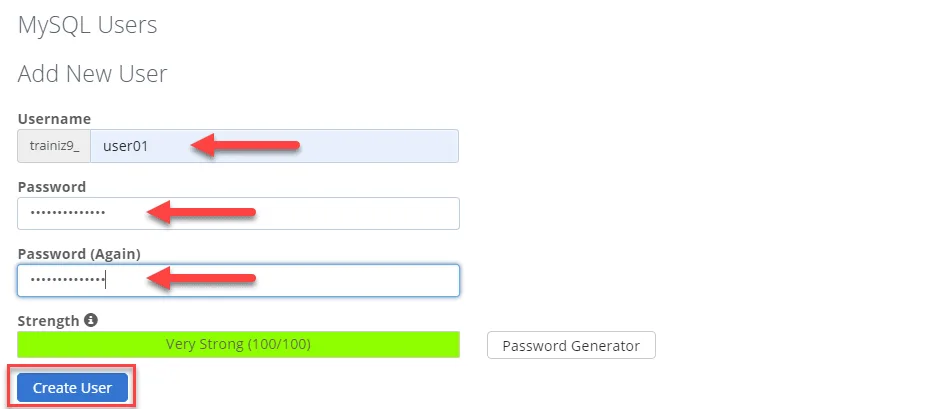
4. Configure: Update your wp-config.php file with your database name, username, and password.

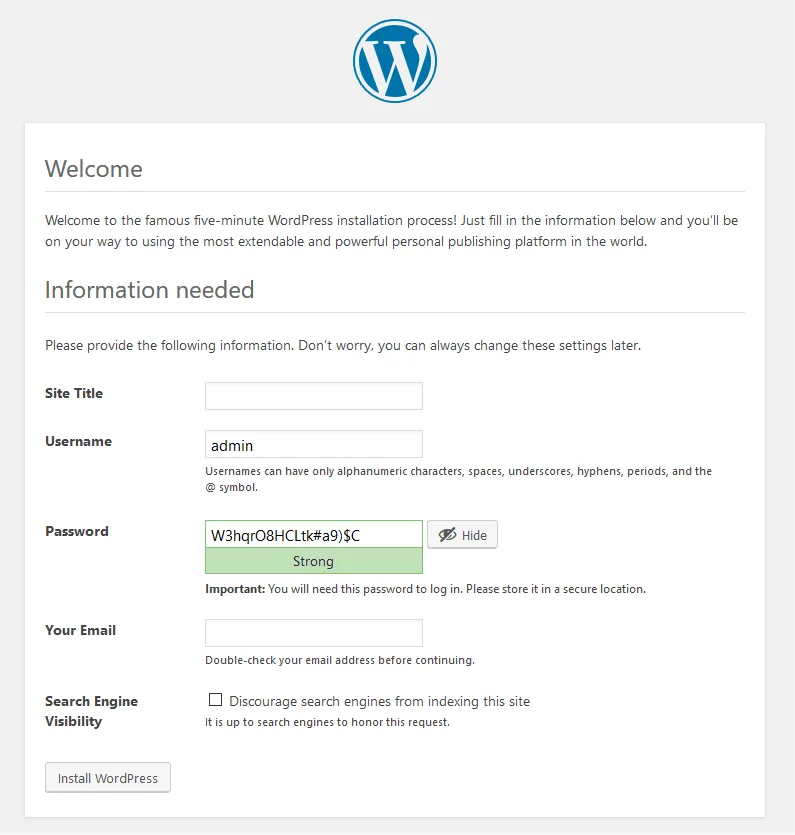
5. Run: Navigate to your domain and follow the on-screen prompts to set your Site Title and Admin password.
Part 2: Installing the Astra Theme
A professional design is a trust signal; 99% of shoppers check reviews and site quality before a major purchase.
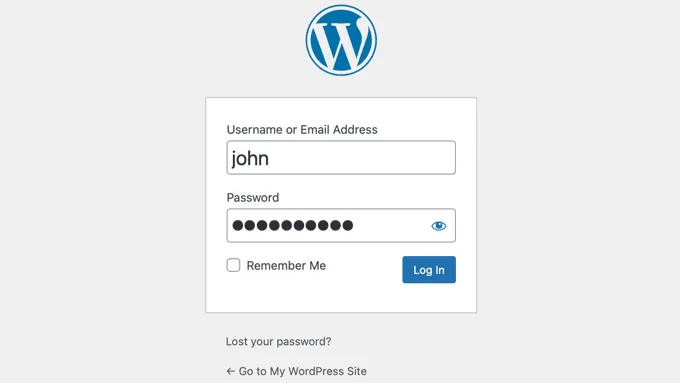
1. Login: Go to your WordPress Dashboard.
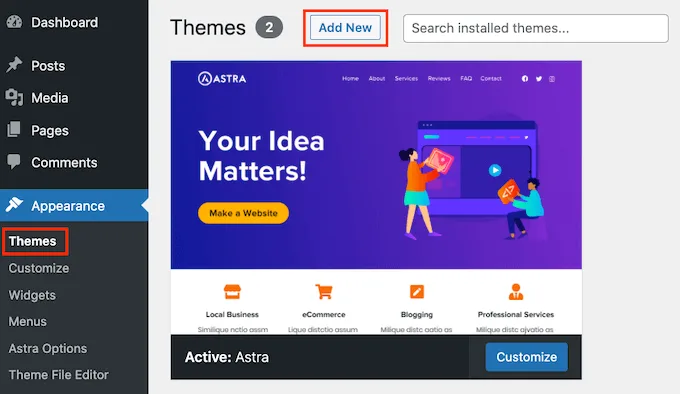
2. Add New: Navigate to Appearance > Themes > Add New.
3. Search: Type “Astra” and click Install.

4. Activate: Once activated, you can import one of Astra’s 250+ pre-built Starter Templates to launch a professional look instantly.
Part 3: Setting Up WooCommerce
WooCommerce turns your WordPress site into a functional shop.
1. Plugin Setup: Go to Plugins > Add New, search for “WooCommerce,” and click Activate.

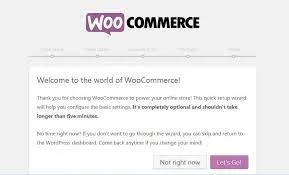
2. The Setup Wizard: Follow the WooCommerce Setup Wizard to set your store location, currency, and product types (physical vs. digital).
3. Payments: Integrate a secure gateway. Stripe (2.9% + $0.30 fee) and PayPal remain the industry standards in 2026.
4. Shipping: Define your zones. Note that 90% of shoppers abandon carts if shipping costs are too high to consider offering free shipping to boost conversions.
Part 4: Adding Products and Testing
-
Add New: Go to Products > Add New. Use high-quality images and persuasive descriptions.
-
SEO: Use the best WordPress SEO plugins like Rank Math to ensure your products appear in Google searches.
-
The 3-Second Rule: Test your store on mobile. Since 60% of total retail e-commerce now happens on smartphones, a mobile-first design is non-negotiable.
Final Thoughts
Starting an online store from scratch in 2026 is achievable in under an hour. By leveraging the speed of Astra and the power of WooCommerce, you can build a sustainable brand. For a competitive edge, don’t forget to add Google Analytics 4 to track your growth from day one.