This post contains affiliate links. If you make a purchase through these links, I may earn a commission at no extra cost to you.
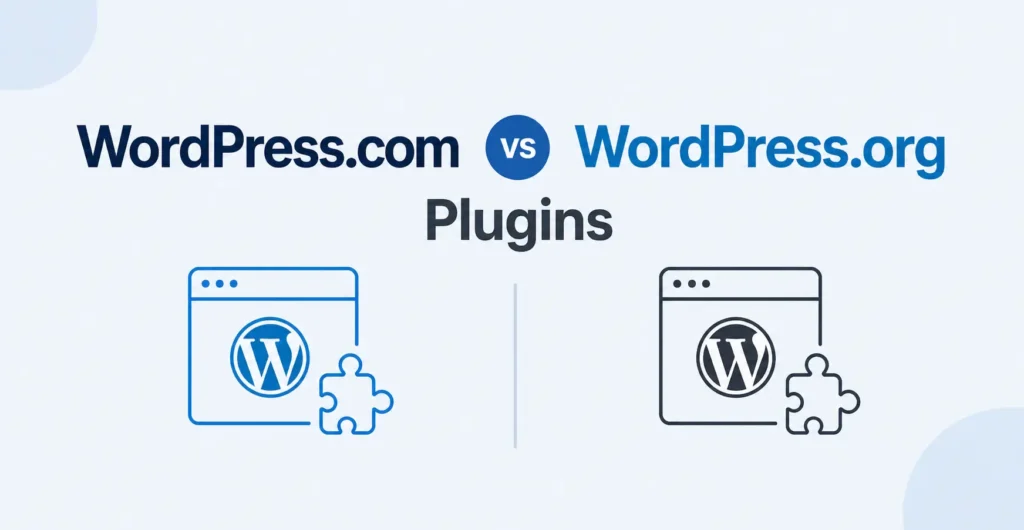
The “WordPress.com vs WordPress.org” debate has been going on for years. But in 2026, the plugin gap that used to define this comparison has practically disappeared. Here’s what’s actually different now.
If you’ve been putting off starting a blog or building a website because you couldn’t figure out which version of WordPress to use, this guide is for you. We’re going to break down exactly what’s changed, what still matters, and which option makes the most sense for your situation right now.
No jargon. No fluff. Just a straightforward comparison so you can make a confident decision and get your site live.
A Quick Refresher – WordPress.com vs WordPress.org
Before we dig into what’s new, let’s get the basics straight. Because even in 2026, this still trips people up.
WordPress.org is the open-source software. You download it for free, install it on your own web server, and manage everything yourself with hosting, security, updates, backups, the works. It gives you total control, but you’re the one keeping the lights on.
WordPress.com is a fully hosted platform built and managed by Automattic (the company behind WordPress itself). You sign up, pick a plan, and your site is live. Hosting, security, backups, and updates are all handled for you.
The Old Perception
For years, the conventional wisdom went something like this:
- “WordPress.org has plugins. WordPress.com doesn’t.”
- “If you want real functionality, you need .org.”
- “WordPress.com is just for simple blogs.”
That advice made sense five or six years ago. It doesn’t anymore.
The 2026 Reality
WordPress.com now supports over 50,000 plugins on every paid plan. That’s the same plugin repository that WordPress.org users have been accessing for years. SEO tools, contact forms, WooCommerce, page builders, analytics plugins, they’re all available right from your WordPress.com dashboard.
This single change has reshaped the entire comparison. Let’s look at what it means in practice.
The Plugin Gap Is (Almost) Gone
This is the biggest shift in the WordPress.com vs WordPress.org plugins conversation, and it happened gradually but by 2026, the transformation is essentially complete.
What Changed
WordPress.com steadily opened up plugin access across its paid plans over the past few years. What started as a limited selection has grown into full access to the WordPress.org plugin directory. That means tens of thousands of free and premium plugins are now installable directly from the WordPress.com dashboard.
What You Can Do Now on WordPress.com
- Install popular SEO plugins like Yoast SEO or Rank Math
- Add contact form plugins like WPForms or Contact Form 7
- Set up a full online store with WooCommerce
- Use page builder plugins for advanced layouts
- Add caching, image optimization, and performance plugins
- Install analytics and tracking tools
- Set up membership and subscription plugins
- Use social media sharing and scheduling plugins
Basically, if it’s in the plugin directory, you can use it on WordPress.com.
What’s Still Different
There is one notable distinction. If you want to upload a custom or private plugin something you’ve built yourself or purchased from a third-party developer outside the official directory, you’ll typically need the Business plan or higher on WordPress.com. The lower-tier plans give you access to the public plugin repository, but not the ability to upload plugin files manually.
On WordPress.org, you can upload any plugin you want, no restrictions. So if you’re running highly custom code, that’s a difference worth knowing about.
But for the vast majority of bloggers, small business owners, and online entrepreneurs? The public plugin repository covers everything you’ll need.
Side-by-Side Comparison Table
Here’s a detailed look at how WordPress.com and WordPress.org stack up across the features that matter most.
| Feature | WordPress.com | WordPress.org |
|---|---|---|
| Plugin access | 50,000+ plugins on all paid plans | 50,000+ plugins (same repository) |
| Number of plugins available | Full WordPress.org plugin directory | Full WordPress.org plugin directory |
| Plugin installation method | One-click install from dashboard | One-click install from dashboard |
| Custom/third-party plugin uploads | Business plan and above | Yes, on all installations |
| Theme access | Thousands of free and premium themes | Thousands of free and premium themes |
| Design customization | Global Styles, custom CSS, custom fonts built in | Requires theme support or additional plugins |
| Hosting included | Yes, fully managed, high-performance hosting | No, you must purchase and configure hosting separately |
| Security | Built-in, managed by Automattic’s security team | Your responsibility, requires security plugins and server hardening |
| Backups | Automatic, real-time backups included (with Jetpack) | Your responsibility, requires backup plugin or hosting-level backups |
| Software updates | Automatic, WordPress core, themes, and plugins | Manual or semi-automatic, you manage and troubleshoot conflicts |
| Pricing | Starts at $4/month (Personal); Business at $25/month | Free software, but hosting, domain, SSL, and premium plugins add up ($10–$50+/month typical) |
| Technical skill required | Low, designed for non-technical users | Medium to high server management, troubleshooting, updates |
| E-commerce (WooCommerce) | Fully supported on Commerce plan and above; WooCommerce available on Business+ | Fully supported with install WooCommerce on any self-hosted site |
| Support | 24/7 support from Automattic on paid plans | Community forums only (unless your hosting provider offers support) |
The takeaway? The feature lists are remarkably similar now. The real difference is who handles the technical work.
Where WordPress.com Now Wins
Let’s be real about where WordPress.com has a genuine advantage in 2026 especially if you’re not a developer.
No Hosting to Manage
You don’t need to shop for hosting, compare server specs, or worry about uptime. WordPress.com runs on Automattic’s global infrastructure. Your site is fast, and you didn’t have to configure a thing.
Built-In Security, Backups, and Updates
This is huge. On a self-hosted WordPress.org site, security is your problem. You need to install security plugins, keep everything updated, monitor for vulnerabilities, and set up your own backup system. Miss an update, and you could end up with a hacked site.
On WordPress.com, all of that is handled automatically. Security patches roll out behind the scenes. Backups happen in real time. Plugin and theme updates are managed so they don’t break your site.
For a blogger or small business owner, this alone can save hours every month.
Plugin Access Without the Technical Overhead
You now get the same plugins but without the headaches. WordPress.com monitors plugin compatibility, handles update conflicts, and keeps your environment stable. On WordPress.org, a single bad plugin update can take your whole site down, and it’s on you to fix it.
Global Styles and Design Tools
WordPress.com has leaned heavily into its Global Styles system, giving you control over fonts, colors, spacing, and layout all without touching code. Combined with the block editor and a growing library of patterns and templates, you can build a genuinely professional-looking site without hiring a designer.
Faster Setup
You can go from zero to a live, functional blog in under 10 minutes on WordPress.com. Pick a plan, choose a theme, add your content, done. With WordPress.org, you’re looking at domain configuration, hosting setup, WordPress installation, SSL certificates, and initial plugin installation before you even write your first post.
Ideal for Non-Technical Users
If the phrase “SSH into your server” makes you nervous, WordPress.com is built for you. Everything is designed to be approachable, and when you do get stuck, there’s a real support team to help.
Plugin Experience Compared
Let’s walk through what it actually feels like to use plugins on each platform. Because the “which has more plugins” question is settled, the real question now is the experience.
Installing Plugins on WordPress.com
- Log into your WordPress.com dashboard
- Go to Plugins in the sidebar
- Browse or search the plugin directory
- Click Install and then Activate
- Configure the plugin settings
That’s it. One-click installation, and WordPress.com handles the rest. When a plugin needs an update, it’s applied automatically (or you’re prompted to approve it, depending on your settings). If a plugin causes a conflict, WordPress.com’s environment catches most issues before they affect your live site.
Installing Plugins on WordPress.org
- Log into your self-hosted WordPress dashboard
- Go to Plugins > Add New
- Browse or search the plugin directory
- Click Install Now and then Activate
- Configure the plugin settings
Sound familiar? The installation process is nearly identical. But here’s where the paths diverge:
- You manage plugin updates and need to check compatibility before updating
- You troubleshoot if a plugin update breaks something
- You need to monitor plugins for security vulnerabilities
- You remove and replace abandoned plugins that stop receiving updates
- You set up staging environments to test updates safely (if you’re being responsible about it)
The Real Difference
The installation is the same. The ongoing maintenance is where WordPress.com saves you significant time and effort. WordPress.com handles plugin updates, compatibility monitoring, and security which means less maintenance for you, week after week, month after month.
For someone running a business or creating content, that’s time you get back to spend on what actually matters.
Which One Should You Choose in 2026?
Here’s the honest answer: it depends on who you are and what you need. But for most people reading this, the answer is clearer than it’s ever been.
Choose WordPress.com If…
- You want to start a blog or website without dealing with technical setup
- You don’t want to manage hosting, security, or backups yourself
- You want access to 50,000+ plugins without the maintenance headaches
- You’re a blogger, content creator, or small business owner
- You want a site that’s fast and secure out of the box
- You’d rather spend your time on content and business, not server administration
- You want reliable support when you need help
- You’re setting up an online store with WooCommerce and want managed infrastructure
Choose WordPress.org If…
- You’re a developer who needs full server access
- You need to upload highly custom plugins or themes that aren’t in the directory
- You want to modify server-level configurations
- You’re building complex, custom web applications on WordPress
- You have the technical skills (or budget to hire someone) to manage hosting, security, and maintenance
- You need complete, unrestricted control over every aspect of your installation
Quick Decision Table
| You should pick… | If this sounds like you… |
|---|---|
| WordPress.com | “I want my site to just work. Give me plugins, good design tools, and handle the tech stuff for me.” |
| WordPress.org | “I’m a developer, and I need full control over the server, the code, and every configuration file.” |
| WordPress.com | “I’m starting an online store and I want WooCommerce without the hosting headaches.” |
| WordPress.org | “I’m building a custom web application that requires server-level access and bespoke integrations.” |
| WordPress.com | “I don’t want to worry about security updates, backups, or plugin conflicts.” |
| WordPress.org | “I enjoy managing my own infrastructure and I want zero platform restrictions.” |
For most bloggers, small business owners, and online entrepreneurs, WordPress.com is now the smarter, simpler choice. You get the plugins, the themes, the design tools, and the power without the overhead.
Frequently Asked Questions
Final Thoughts
The WordPress.com vs WordPress.org plugins debate used to have a clear answer: if you wanted plugins, you needed WordPress.org. That’s no longer true.
In 2026, WordPress.com gives you access to 50,000+ plugins, powerful design tools like Global Styles, built-in security and backups, automatic updates, and managed hosting, all in one package. The plugin gap that defined this comparison for over a decade has effectively closed.
WordPress.org remains an excellent platform for developers and technically advanced users who need unrestricted server access and complete control. That hasn’t changed, and it doesn’t need to.
But if you’re a blogger, a small business owner, or someone who just wants a great website with great plugins and none of the technical hassle, the answer in 2026 is simpler than it’s ever been.
WordPress.com gives you the power of WordPress with the simplicity you actually want.
Ready to see the difference for yourself? Head to WordPress.com and start building your site today. With every paid plan now including full plugin access, there’s never been a better time to get started.